Introduction
Use the Filter feature in IGB to hide or show annotations based on attributes like alignment pattern.
For example, the images below show an alignment track imported from a BAM file with and without filtering. The top image shows how it looks without filtering. The bottom below shows how it looks after that is then filtered to hide all alignments that lack gaps. Notice how the gaps coincide with gaps in the genome model in the track labeled "TAIR10 All." This type of filter makes it easier to assess splicing patterns by removing irrelevant data.
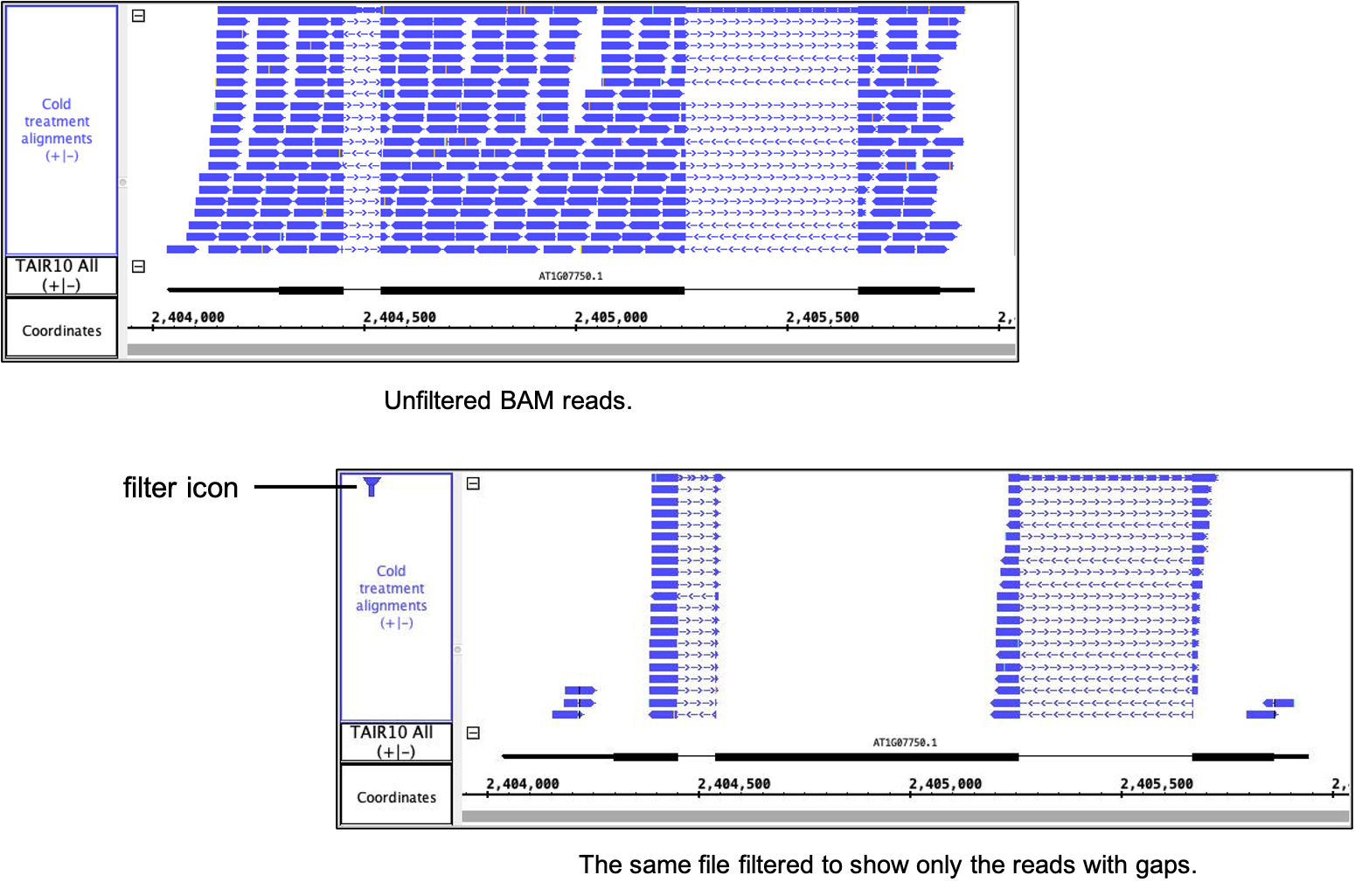
To replicate these images in IGB:
- Open the Arabidopsis thaliana genome (A_thaliana_Jun_2009).
- Navigate to Chr1:2,403,941-2,406,038
- In the Available Data box within the Data Access tab:
- Under IGB Quickload
- Unselect Araport
- Select TAIR 10 All
- Under RNA-Seq
- Select Cold SRP029896 > Reads > Cold treatment alignments
- Under IGB Quickload
- Click Load Data.
- Click Load Sequence.
- Right-click on the Cold treatment alignments track label
- Select Set Stack Height...
- Enter 20 and click OK.
- Right-click on the Cold treatment alignments track label
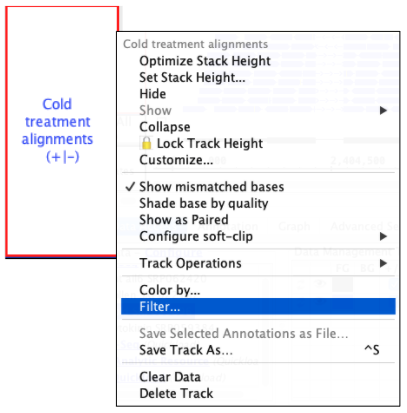
- Select Filter...
- Click Add.
- In the Add filter menu:
- Select Reads with gaps.
- Click OK.
- Click OK.
Add a filter
To add a filter an annotation track:
- Right-click on the track label.
- Select Filter... to open the Add/Remove/Edit Filters menu.
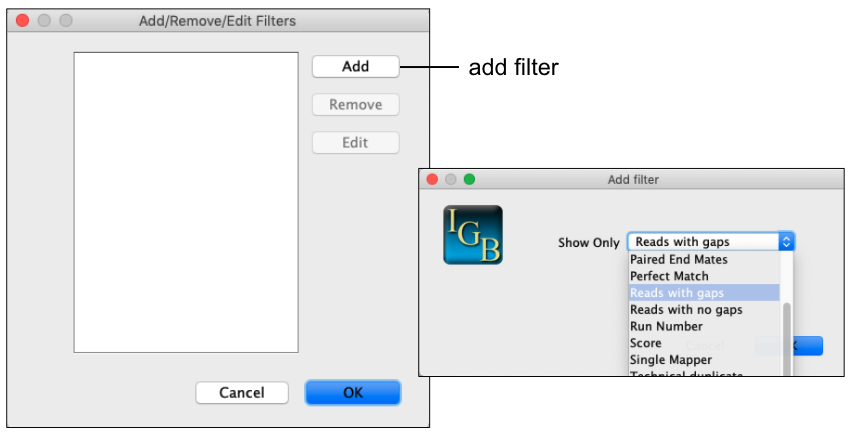
- Click Add to open the Add Filter menu.
- Select the filter you wish to apply in the Show Only dropdown.
- Some filters will have various parameters that can be modified.
- Click OK to add the filter to the current list of filters in Add/Remove/Edit Filters menu.
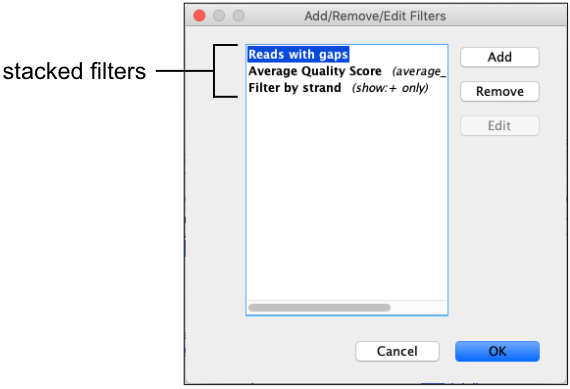
- Add multiple filters to stack their effects.
- Click OK to apply the filters.
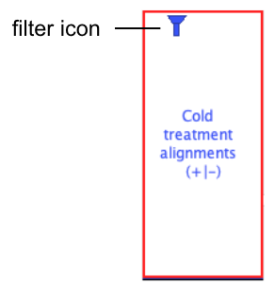
- A funnel icon in the annotation track label indicates a filter is applied.
Remove a filter
To remove a filter:
- Right-click on the track label.
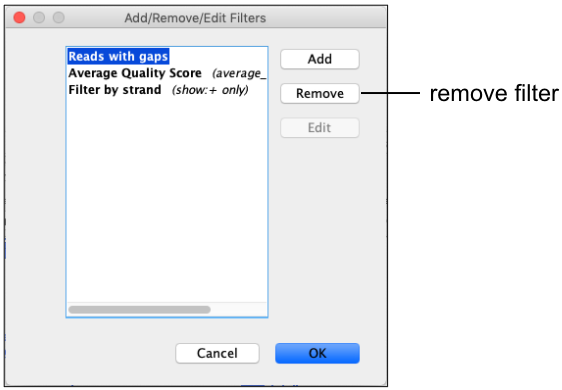
- Select Filter... to open the Add/Remove/Edit Filters menu.
- Select the filter you wish to remove.
- Click Remove.
- Click OK.
Edit a filter
To edit a filter:
- Right-click on the track label.
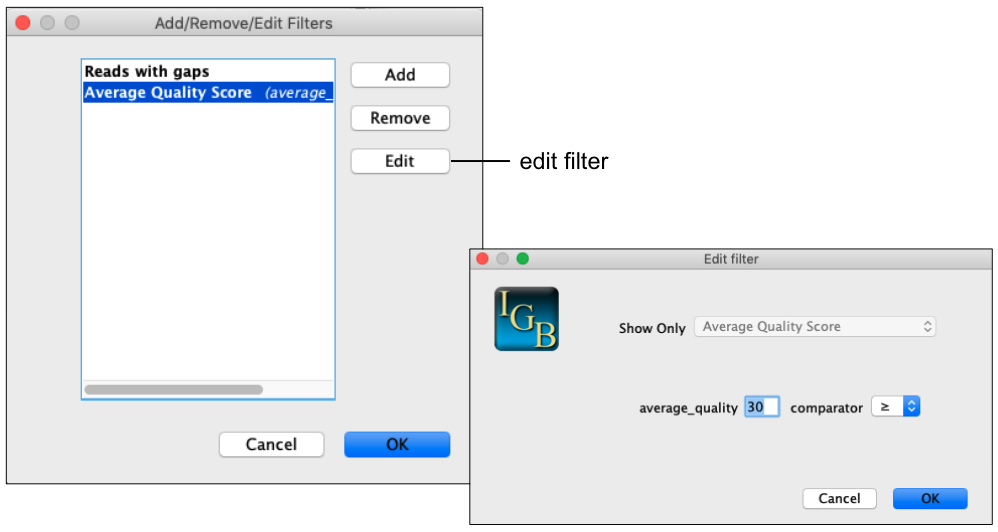
- Select Filter... to open the Add/Remove/Edit Filters menu.
- Select the filter you wish to edit.
- Click Edit.
- Make any necessary changes to the filter parameters.
- Click OK to accept the edits to the filter.
- Click OK to accept all changes to the Add/Remove/Edit Filters menu.
Available filters
Built-in filters include:
Alignments loaded from BAM/SAM/CRAM files
- Average Quality Score
- Filter by strand
- Mapping Quality Score
- Mismatch
- Multi Mapper
- Paired End Mates
- Perfect Match
- Reads with gaps
- Reads with no gaps
- Run Number
- Score
- Single Mapper
- Technical duplicate
Annotations imported from Bed/GFF files
- Reads with gaps
- Reads with no gaps
- Score